
Scheduling Recurring Tasks with Cron#
What is Cron?#
Cron is a time-based job scheduler built into Unix-like operating systems (Linux and macOS). It runs in the background as a daemon and executes commands or scripts at scheduled times or intervals. A cron job is a single scheduled task—a command paired with a schedule that tells cron when to run it.
Cron is commonly used to automate repetitive tasks such as:
Pulling fresh data from an API on a daily or hourly basis
Running a data pipeline to update tables or charts
Generating and emailing periodic reports
Cleaning up temporary files or logs
If you have used GitHub Actions, you may have already encountered cron syntax.
GitHub Actions uses it in the schedule trigger of workflow YAML files to define
when a workflow should run automatically. Understanding cron syntax will help you
configure these schedules effectively.
Cron Syntax#
A cron schedule is defined by five fields separated by spaces, followed by the command to run:
# ┌───────────── minute (0–59)
# │ ┌───────────── hour (0–23)
# │ │ ┌───────────── day of month (1–31)
# │ │ │ ┌───────────── month (1–12)
# │ │ │ │ ┌───────────── day of week (0–6, Sunday=0)
# │ │ │ │ │
# * * * * * command_to_execute
An asterisk (*) means “every” value for that field. Here are some common examples:
Expression |
Meaning |
|---|---|
|
Every weekday at 9:00 AM |
|
Every 15 minutes |
|
Midnight on the first of every month |
|
Every Friday at 5:30 PM |
|
Every day at 6:00 AM |
Tip
Use crontab.guru to build and validate cron expressions interactively. It shows a human-readable description of any cron expression you enter.
Platform Availability#
macOS and Linux#
Cron is built into both macOS and Linux. No installation is required. You can start using it immediately by opening a terminal and running crontab -e.
On macOS, the
crondaemon is managed bylaunchd, but the standardcrontabcommands work as expected.On Linux, cron is available on virtually all distributions (via packages like
cron,cronie, or throughsystemdtimers).
Windows via WSL#
Native Windows does not include cron. However, if you install the Windows Subsystem for Linux (WSL), you get a full Linux environment where cron is available.
What is WSL?
Windows Subsystem for Linux (WSL) lets you run a full Linux distribution
(such as Ubuntu) directly on Windows, without a virtual machine or dual boot.
It provides access to standard Linux tools including cron, bash, ssh, git, and more.
For setup instructions, see Microsoft’s official guide: Install WSL.
Editing Cron Jobs with crontab#
The primary way to manage cron jobs is through the crontab command:
# Open your crontab file for editing
crontab -e

# List your current cron jobs
crontab -l

# Remove all your cron jobs (use with caution)
crontab -r
Running crontab -e opens your personal crontab file in a text editor (usually nano or vi). Each non-comment line defines one scheduled job. Lines starting with # are comments.
Here is an example of what a crontab file might look like:
# Pull market data every weekday at 6:00 AM
0 6 * * 1-5 /home/user/scripts/pull_market_data.sh

# Generate weekly report every Sunday at midnight
0 0 * * 0 /home/user/scripts/generate_report.sh

# Clean temporary files every day at 3:00 AM
0 3 * * * /home/user/scripts/cleanup.sh
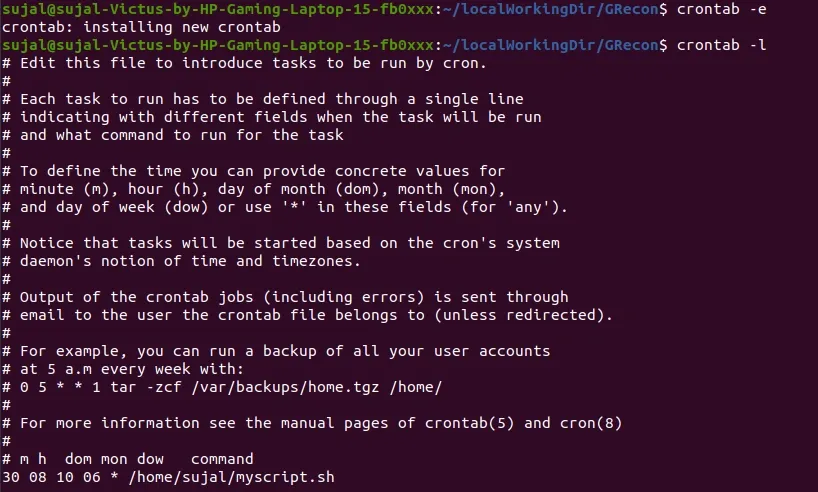
Fig. 6 Editing and listing cron jobs in a Linux terminal with crontab -e and crontab -l.
Source: GeeksforGeeks#
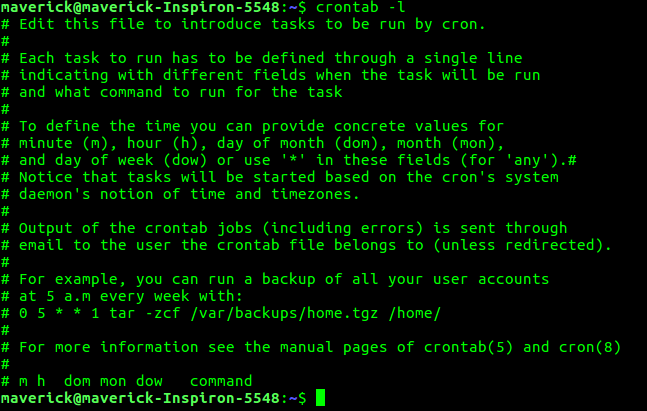
Fig. 7 Output of crontab -l showing the default crontab comments that explain the syntax,
including the five time fields: minute (m), hour (h), day of month (dom), month (mon),
and day of week (dow).
Source: GeeksforGeeks#
Windows Alternative: Task Scheduler and .bat Scripts#
For Windows users who do not use WSL, Windows provides Task Scheduler—a built-in GUI tool for scheduling recurring tasks.
.bat Scripts#
On Windows, scheduled tasks typically run .bat (batch) files rather than shell scripts. A .bat file is the Windows equivalent of a Bash script. Here is a simple example:
@echo off
REM pull_market_data.bat - Pull daily market data
cd C:\Users\student\projects\data_pipeline
python pull_data.py
You can create a .bat file in any text editor and save it with the .bat extension.
Scheduling with Task Scheduler#
To schedule a .bat script (or any program) to run on a recurring basis:
Open Task Scheduler from the Start menu (search “Task Scheduler”).
Click “Create Basic Task…” in the Actions panel on the right.
Give the task a name and description.
Set the trigger (daily, weekly, monthly, etc.).
Set the action to “Start a program” and browse to your
.batfile.Review the summary and click Finish.
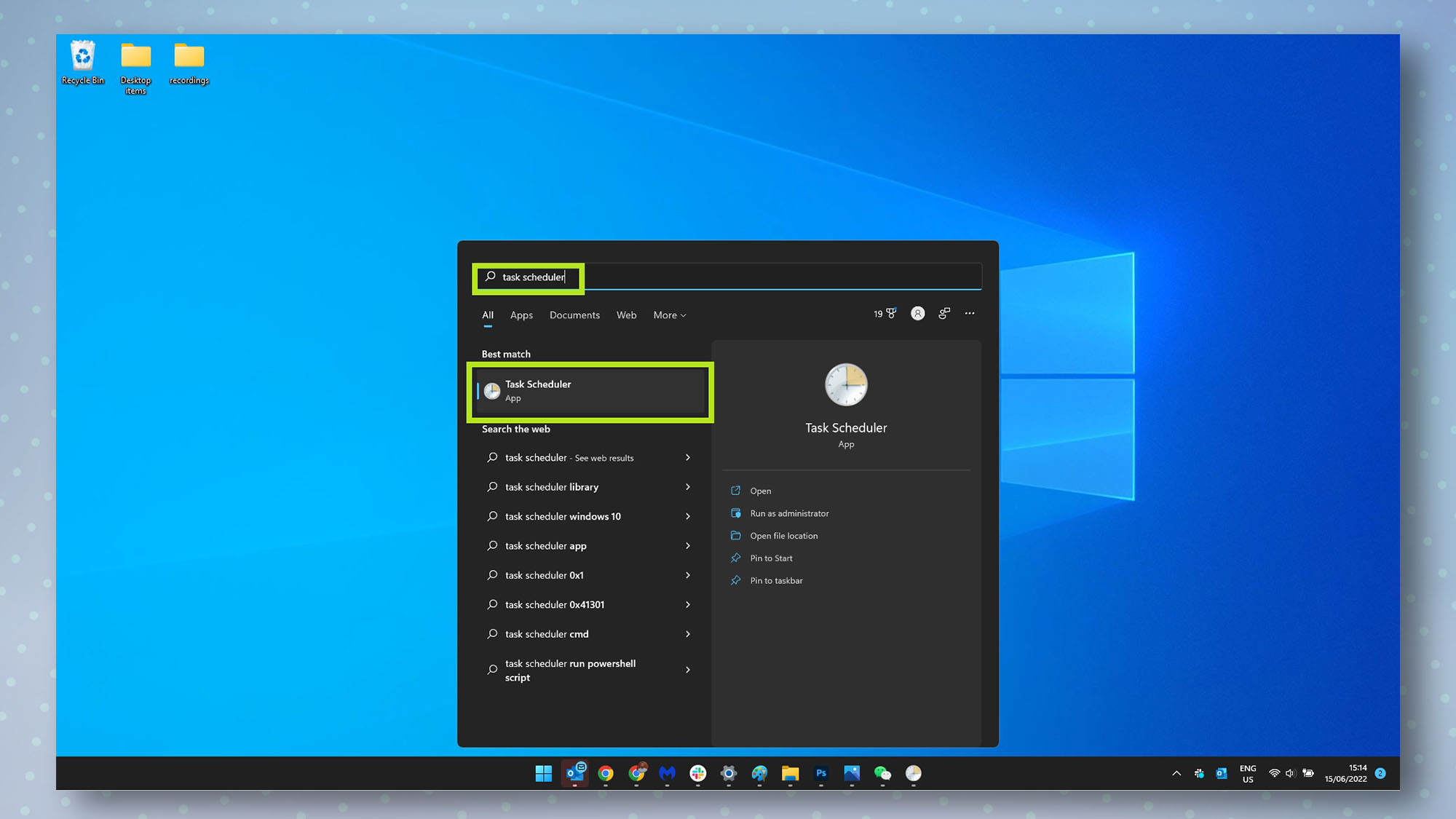
Fig. 8 Searching for Task Scheduler in the Windows Start menu. Source: Tom’s Guide#
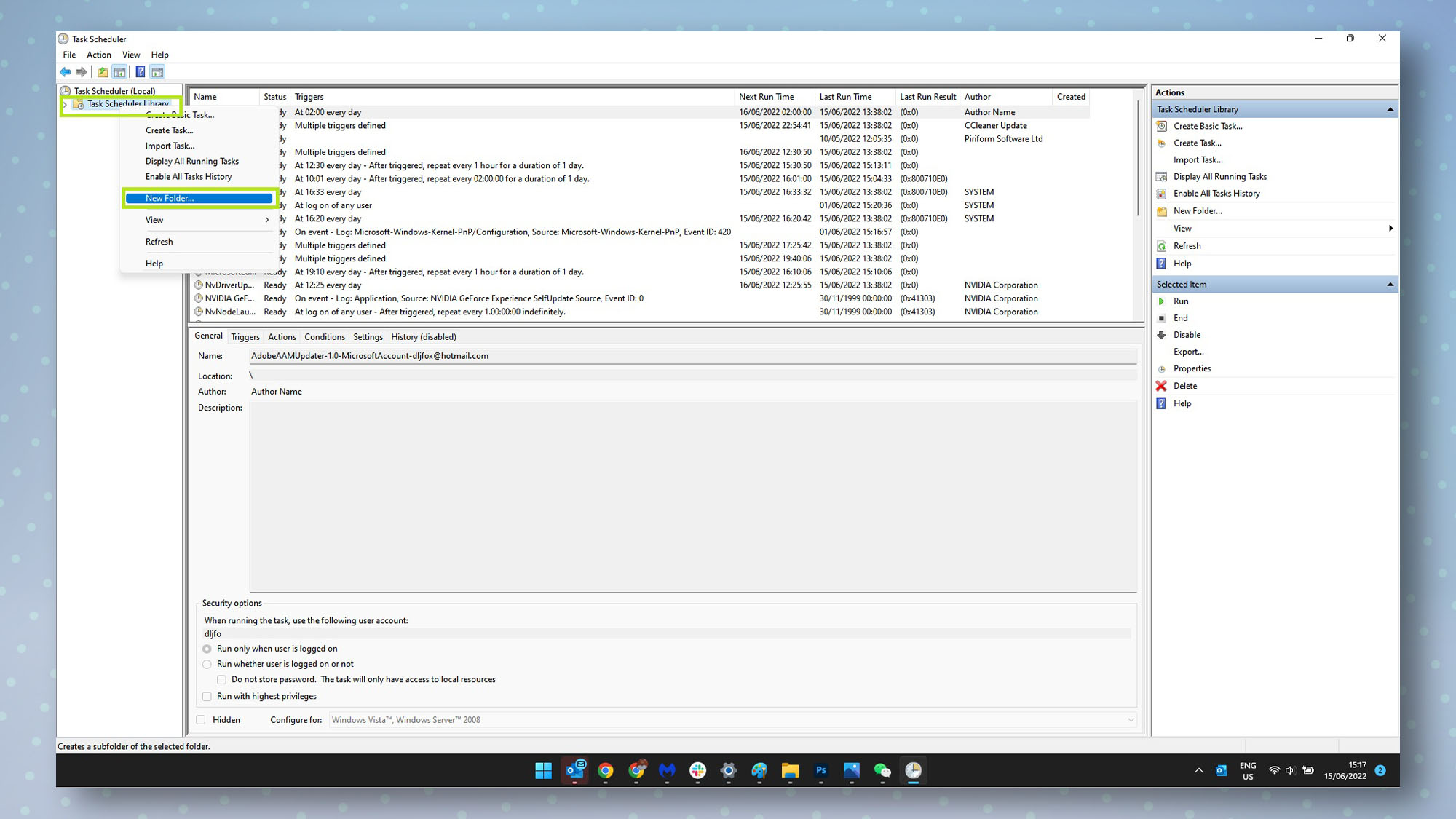
Fig. 9 The Windows Task Scheduler interface showing scheduled tasks with their triggers, next run times, and status. The Actions panel on the right provides options to create new tasks. Source: Tom’s Guide#
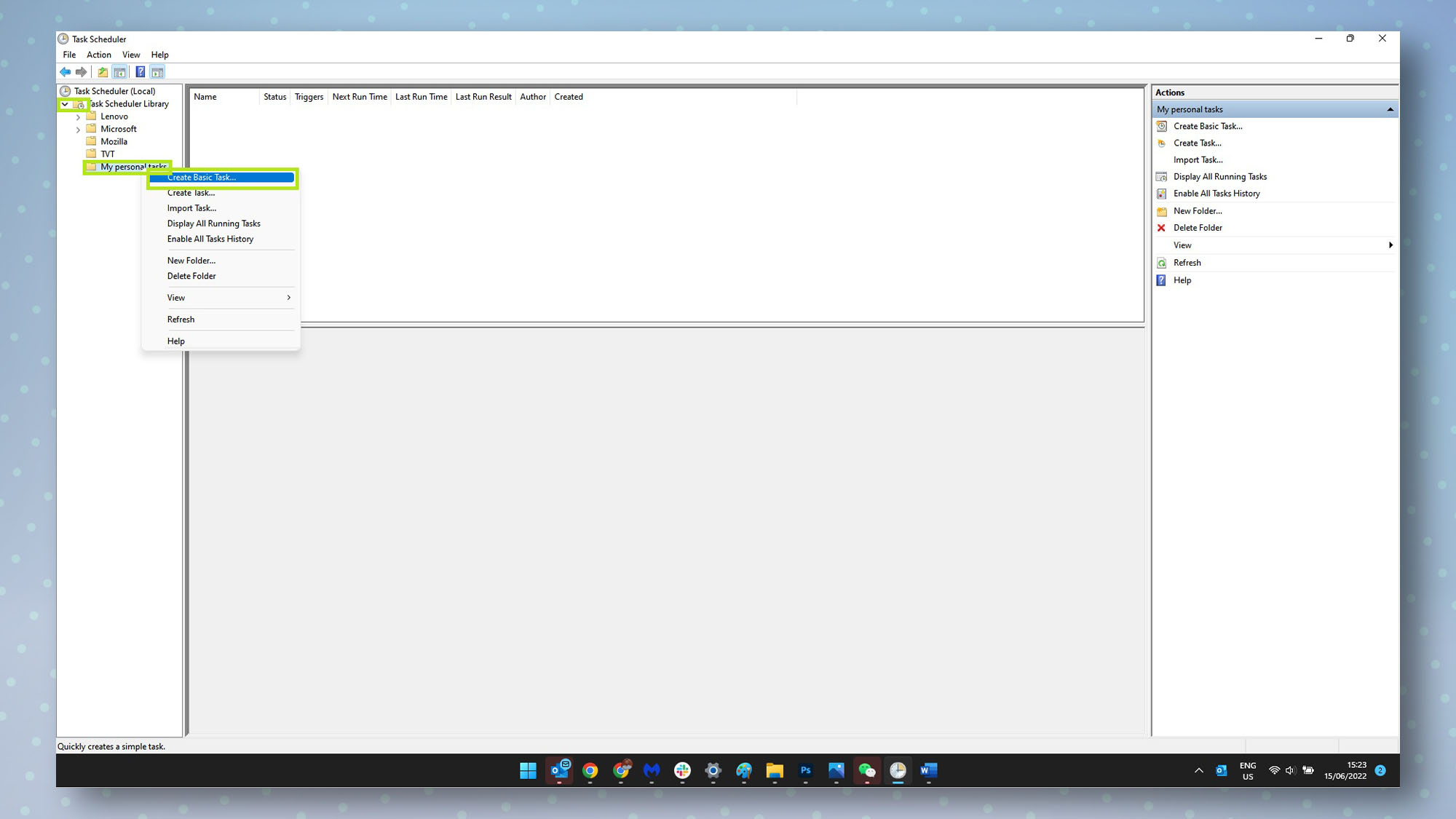
Fig. 10 Right-clicking in Task Scheduler to access “Create Basic Task…”, which opens a wizard for scheduling a new recurring task. Source: Tom’s Guide#
Tip
For most tasks in this course, GitHub Actions (covered in the
previous section) is the
recommended way to schedule recurring jobs, since it runs in the cloud and does
not depend on your local machine being powered on. However, understanding cron
and Task Scheduler is valuable for local automation and for reading the cron
syntax used in GitHub Actions workflow files.
Further Reading#
crontab.guru — Interactive cron expression editor
Cron (Wikipedia) — Overview and history of cron
Ubuntu CronHowTo — Detailed cron guide for Linux
Install WSL (Microsoft) — WSL setup instructions
Task Scheduler (Microsoft) — Official Task Scheduler documentation